AI Background Generator: Create & Remove Backgrounds Instantly (2026)
Learn how to generate custom backgrounds, remove backgrounds from photos, and swap backgrounds with AI. Compare the best AI background tools, get step-by-step tutorials, and discover prompts for stunning results.
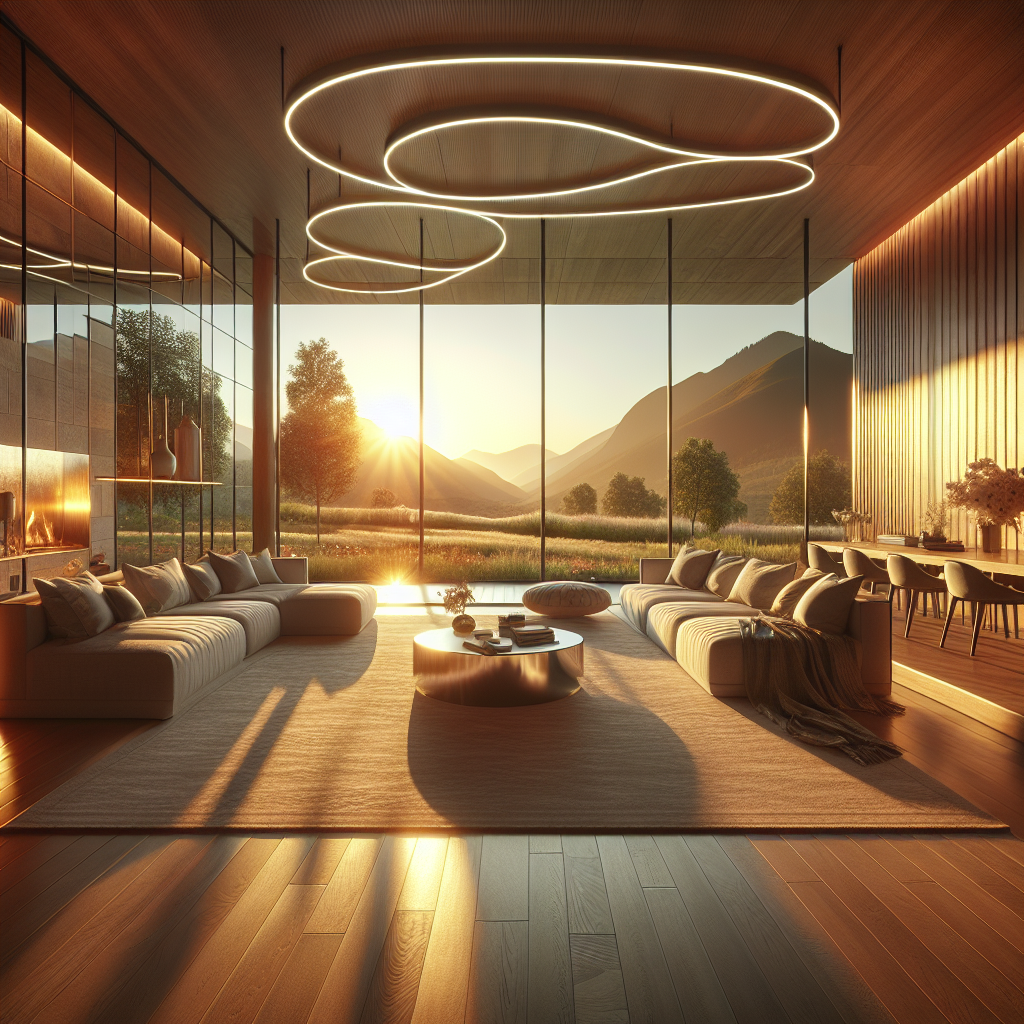
AI Background Generator: Create & Remove Backgrounds Instantly (2026)
Whether you need to remove an unwanted background from a product photo, generate a completely new scene behind your subject, or swap a boring backdrop for something eye-catching, AI background generators make it possible in seconds. No Photoshop skills required. In this comprehensive guide, we cover everything from background removal to AI-generated scene creation, with step-by-step instructions and ready-to-use prompts.
Generate custom backgrounds instantly
AI2image lets you create stunning backgrounds using DALL-E 3 directly in your browser. Get 3 free image generations when you sign up.
What Is an AI Background Generator?
An AI background generator is a tool that uses artificial intelligence to create, remove, or replace backgrounds in images. These tools leverage deep learning models like DALL-E 3, Stable Diffusion, and specialized segmentation networks to understand what's in the foreground of your image and what constitutes the background.
There are three main categories of AI background tools:
- Background Removal: Automatically detects and removes the background, leaving a transparent or solid-color backdrop behind the subject.
- Background Generation: Creates entirely new backgrounds from text prompts — imagine placing your product photo on a marble countertop or a tropical beach.
- Background Replacement: Combines removal and generation — the AI removes the existing background and replaces it with a new AI-generated scene in one step.
Best AI Background Generator Tools in 2026
Here is how the leading AI background tools compare across features, pricing, and quality:
| Tool | Best For | Background Removal | Background Generation | Price |
|---|---|---|---|---|
| AI2image | Custom scene generation | Via prompt | DALL-E 3 powered | 3 free, then $5.99/10 |
| Remove.bg | Quick background removal | Excellent | No | 1 free/day, then $1.99/image |
| Canva | Design integration | Good (Pro) | Limited templates | Free tier / $12.99/mo Pro |
| Photoroom | E-commerce product photos | Excellent | AI scene generation | Free tier / $9.99/mo |
| Adobe Firefly | Professional editing | Excellent | Generative Fill | Included in CC |
| Clipdrop | All-in-one editing | Very Good | Stable Diffusion | Free tier / $9/mo |
How to Generate AI Backgrounds (Step-by-Step)
Follow these steps to create professional backgrounds using AI:
Step 1: Choose Your Approach
Decide whether you need to:
- Remove a background: Upload an existing photo and let AI cut out the subject automatically.
- Generate a new background: Use a text prompt to create an entirely new scene from scratch.
- Replace a background: Combine both steps — remove the old backdrop and drop in a new AI-generated one.
For generating new backgrounds from text, AI2image is an excellent choice because it uses DALL-E 3 for high-quality scene generation.
Step 2: Write a Descriptive Background Prompt
When generating backgrounds from text, include these elements in your prompt:
- Scene type: Studio, outdoor, abstract, textured
- Lighting: Soft studio light, golden hour, neon, dramatic
- Colors: Specify a palette or mood (warm earth tones, cool blues, pastel)
- Texture/Surface: Marble, wood, concrete, fabric, bokeh
Example prompts for backgrounds:
Clean white marble surface with soft shadows, product photography background, studio lighting
Blurred tropical beach at sunset, warm golden bokeh, dreamy background for portrait photography
Step 3: Refine and Download
After generating your background:
- Check that the lighting direction matches your subject photo.
- Ensure the perspective and depth of field are consistent.
- Adjust the prompt if the colors or mood don't fit your brand.
- Download in the highest resolution available for best results when compositing.
AI Background Removal: How It Works
AI background removal uses semantic segmentation models that have been trained on millions of images. These models identify every pixel in an image as either "foreground" (the subject you want to keep) or "background" (everything else). Modern AI removal tools achieve near-perfect edge detection, even handling tricky elements like hair strands, transparent objects, and complex textures.
The process typically takes under 5 seconds and works in three phases:
- Detection: The AI identifies the main subject(s) in the image using object recognition.
- Segmentation: A precise mask is created around the subject, including fine details like individual hairs.
- Output: The background is removed and replaced with transparency (PNG) or a solid color of your choice.
Best AI Background Prompts for Different Use Cases
E-commerce Product Backgrounds
Product photos need clean, professional backgrounds that don't distract from the item:
Pure white seamless background, soft even studio lighting, product photography setup, no shadowsLight gray gradient background, subtle shadow underneath, minimalist product display, professionalRustic wooden table surface, natural daylight from window, lifestyle product photography backgroundMarble countertop with green botanical elements, luxury product backdrop, soft natural lightingPastel pink background with subtle geometric patterns, modern feminine aesthetic, flat lay style
Portrait and Headshot Backgrounds
Professional portraits need backgrounds that complement but don't overpower the subject:
Soft blurred office interior background, warm tones, professional headshot backdrop, bokeh effectAbstract gradient background, deep navy to charcoal, smooth transition, portrait photographyOutdoor park setting, soft golden hour light, blurred green foliage, natural portrait backgroundClean gray studio backdrop with subtle texture, professional lighting, corporate headshot backgroundBlurred city skyline at dusk, warm ambient lighting, executive portrait background, cinematic
Social Media and Creative Backgrounds
Vibrant gradient background, neon pink to electric blue, modern social media aesthetic, cleanTropical monstera leaves pattern, dark moody background, Instagram-ready, lifestyle aestheticAbstract paint splashes, watercolor texture, artistic creative background, pastel colorsRetro 80s synthwave background, neon grid, purple and cyan, vaporwave aestheticCozy home interior, warm fairy lights, knitted blankets, hygge aesthetic background
Generate Custom Backgrounds in Seconds
Describe the background you need and let AI create it. No design skills required.
Try AI2image Free →AI Background Generation for E-commerce
E-commerce sellers are among the biggest beneficiaries of AI background tools. Traditional product photography requires a studio setup, professional lighting equipment, and often a photographer — costing $25 to $75 per image. AI background generation reduces this to pennies per image while delivering comparable quality.
Benefits for Online Sellers
- Consistency: Every product photo gets the same clean, professional background, creating a cohesive storefront.
- Speed: Process hundreds of product images in minutes instead of hours in a photo studio.
- Cost savings: Eliminate studio rental fees, equipment costs, and photographer fees.
- A/B testing: Easily create multiple background variations to test which converts better.
- Seasonal updates: Quickly swap backgrounds for holidays, sales events, or new campaigns.
Platform Requirements
Different e-commerce platforms have specific background requirements:
| Platform | Background Requirement | Image Size | Format |
|---|---|---|---|
| Amazon | Pure white (RGB 255,255,255) | 1000x1000 min | JPEG/PNG |
| Shopify | Consistent (any color) | 2048x2048 recommended | JPEG/PNG/WebP |
| Etsy | Clean, lifestyle OK | 2000x2000 recommended | JPEG/PNG/GIF |
| eBay | White or light gray | 1600x1600 recommended | JPEG/PNG |
Advanced Techniques for AI Backgrounds
Matching Lighting and Perspective
The most common mistake when using AI-generated backgrounds is mismatched lighting. If your subject was photographed with light coming from the left, your background should also have lighting from the left. Include lighting direction in your prompt: "soft light from the left side" or "overhead studio lighting with minimal shadows."
Perspective is equally important. A product shot from above needs a flat surface background, not a landscape. A portrait taken at eye level needs a background with a matching horizon line. Always consider the camera angle when describing your desired background.
Creating Seamless Composites
To create professional-looking composites where the subject looks naturally placed in the AI background:
- Match the depth of field: If your subject is sharp, use a slightly blurred background to create depth.
- Color grade consistently: Make sure the color temperature of your subject matches the background scene.
- Add contact shadows: The subject needs a subtle shadow where it meets the background surface to look grounded.
- Consider reflections: On glossy surfaces, the subject should have a faint reflection.
Batch Processing Backgrounds
If you have dozens or hundreds of product images that need new backgrounds, many AI tools support batch processing. Upload all images at once, apply the same background settings, and export everything in one go. This is especially useful for e-commerce stores with large catalogs.
Free vs Paid AI Background Tools
Understanding the differences between free and paid tiers helps you choose the right option:
Free Options
- AI2image: 3 free DALL-E 3 background generations on signup — great for trying custom scene creation.
- Remove.bg: 1 free background removal per day in standard resolution.
- Canva Free: Basic background removal with limited quality.
- Photoroom Free: Background removal with watermark on exports.
When to Upgrade
- You need high-resolution exports (4K+) for print or large displays.
- You are processing product images in bulk for an online store.
- You want AI-generated scene backgrounds, not just removal.
- You need consistent brand-specific backgrounds across all images.
- You require commercial licensing for client work.
Frequently Asked Questions
What is the best free AI background generator?
AI2image is one of the best free options for generating custom backgrounds from text prompts using DALL-E 3, offering 3 free generations on signup. For pure background removal, Remove.bg offers one free removal per day. Canva also provides basic background removal on its free plan.
How does AI background removal work?
AI background removal uses deep learning segmentation models trained on millions of images. The AI identifies the main subject by analyzing edges, colors, and context, then creates a precise mask separating foreground from background. The process handles fine details like hair strands and semi-transparent objects, producing clean cutouts in seconds.
Can I use AI-generated backgrounds for commercial products?
Yes. AI-generated backgrounds created with DALL-E 3 (used by AI2image) and most other major platforms can be used commercially. This makes them ideal for e-commerce product photos, marketing materials, and client work. Always verify the commercial usage terms of the specific tool you are using.
What is the difference between background removal and background generation?
Background removal strips away the existing background from a photo, leaving the subject on a transparent or solid-color layer. Background generation creates an entirely new scene from a text description using AI models like DALL-E 3. Some tools combine both: they remove the old background and replace it with an AI-generated scene in one step.
How do I make AI-generated backgrounds look realistic?
Match the lighting direction and color temperature between your subject and the generated background. Ensure the perspective and depth of field are consistent. Add contact shadows where the subject meets the surface. Use specific prompts that describe lighting, surface texture, and mood. For product photos, mention "studio lighting" and "soft shadows" in your prompt for professional results.
Create Perfect Backgrounds with AI
3 free generations. No credit card. Professional results in seconds.
Try AI2image Free →Try this prompt:
Clean white marble surface with soft shadows, product photography background, studio lighting
Try this prompt:
Blurred tropical beach at sunset, warm golden bokeh, dreamy background for portrait photography
Try this prompt:
Vibrant gradient background, neon pink to electric blue, modern social media aesthetic, clean